Faceless Tutorials
Tutorial 21 / 36Creation formats
Add Subtitles to Your Video
Upload your own footage, let Faceless transcribe it, and restyle the captions live.
55s7 steps
0/7 done
01
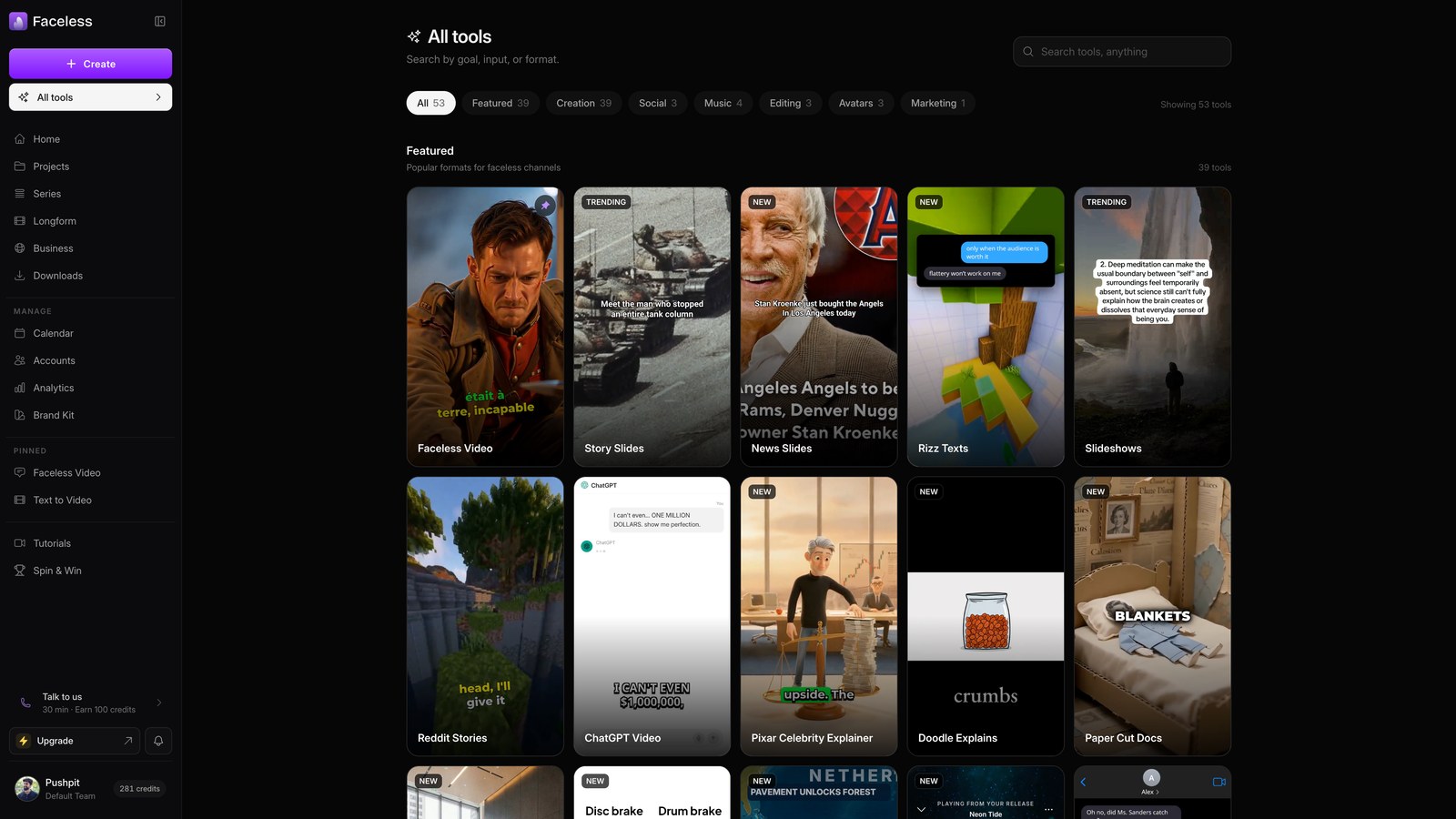
Open all tools
Open all tools to find the captioning option for footage you already have.
02
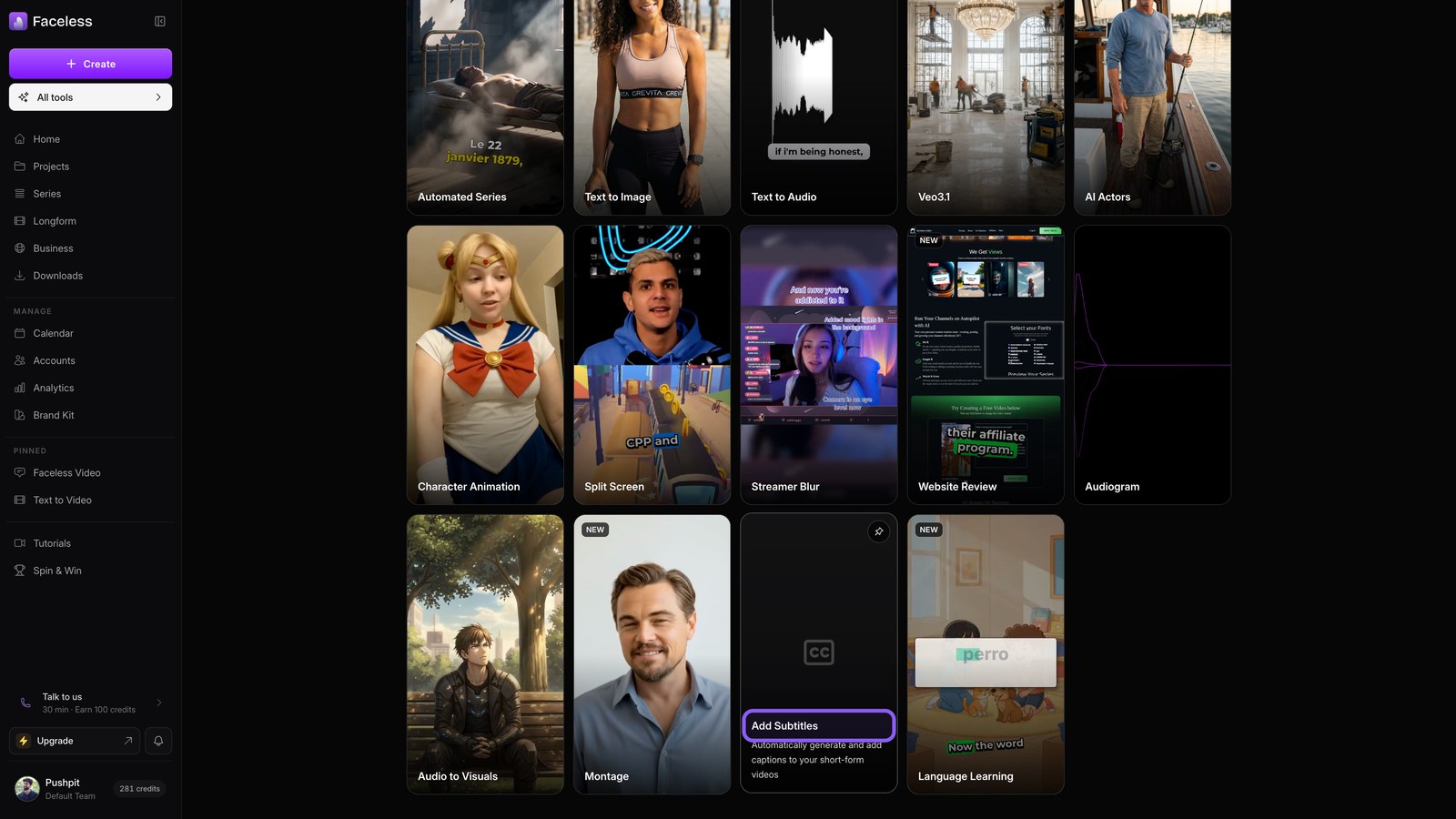
Subtitles card
Choose Add Subtitles to start with a video from your camera or editor.
03
Pick your file
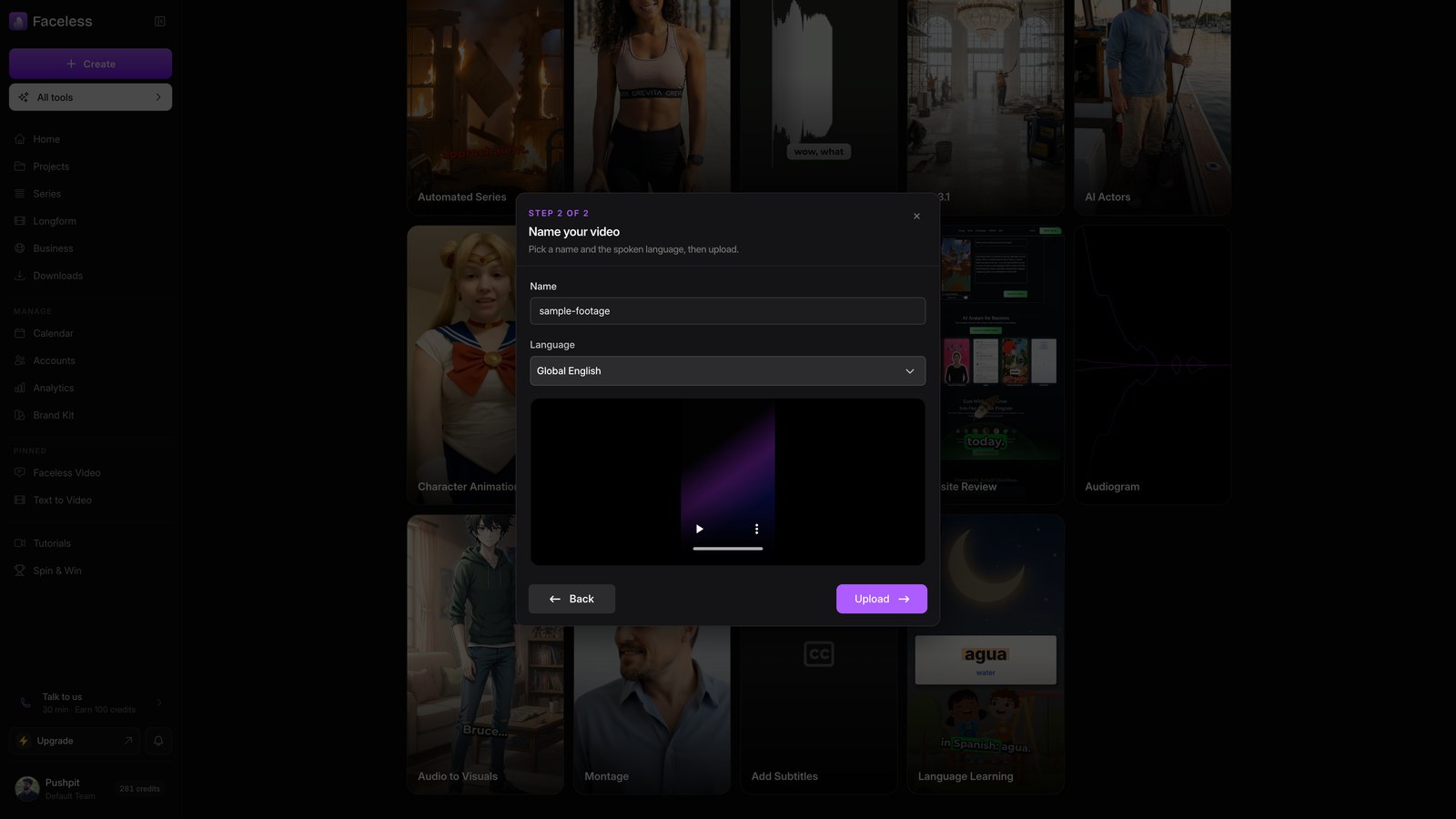
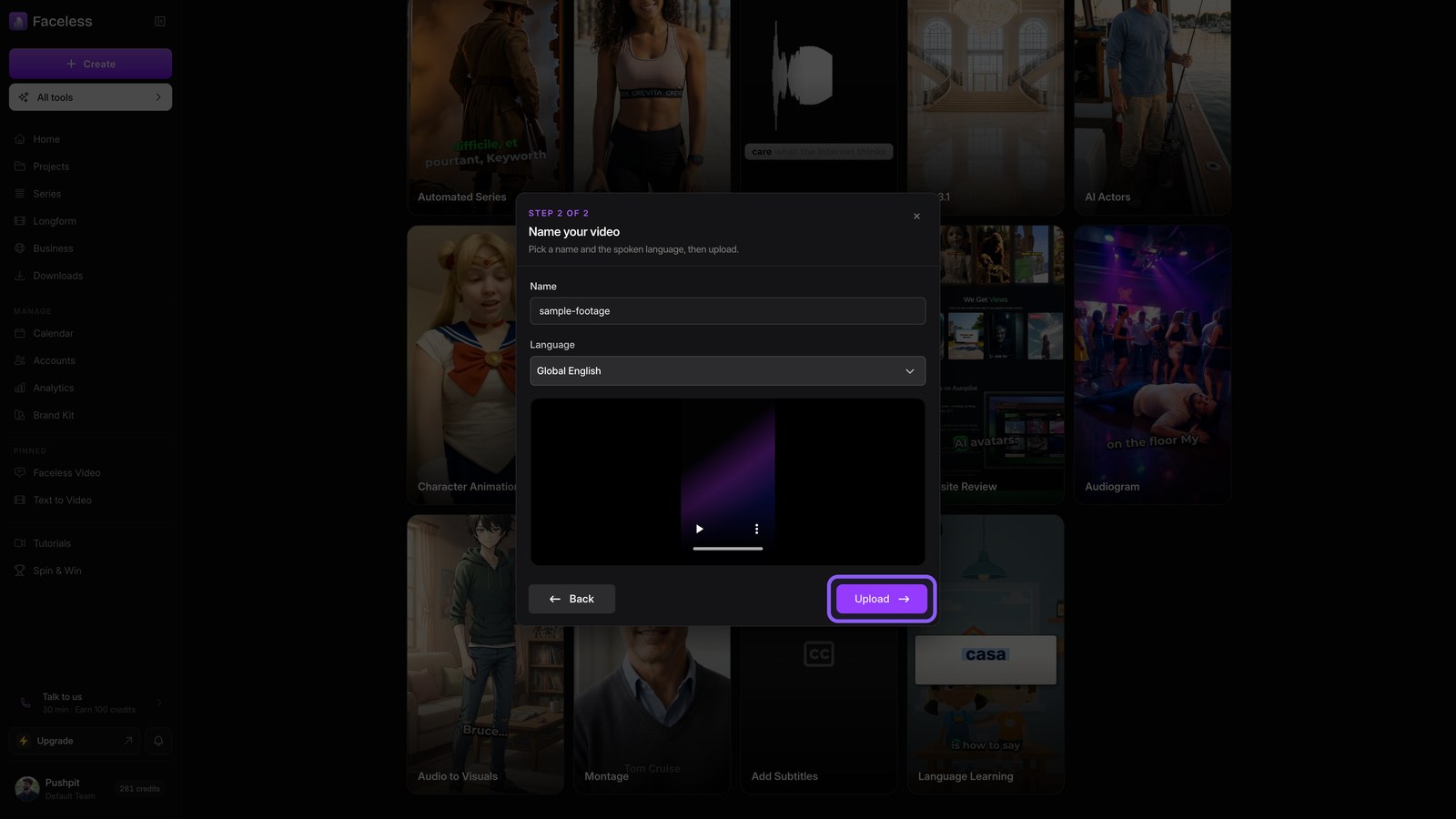
Pick, name, and confirm your file's spoken language.
04
Upload and transcribe
Hit Upload. Faceless opens your project and transcribes the speech into editable captions. Wait for the transcription to finish.
05
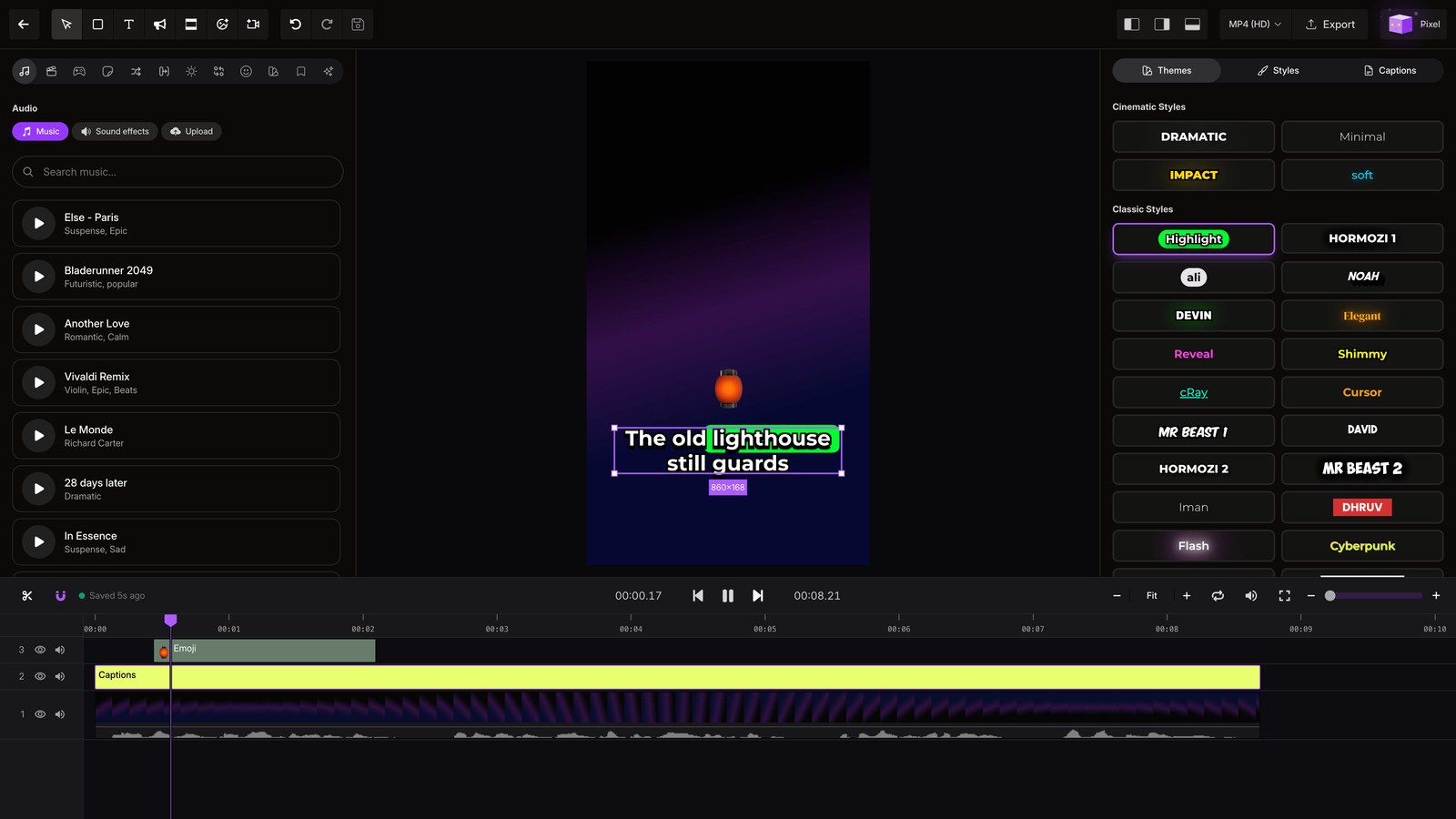
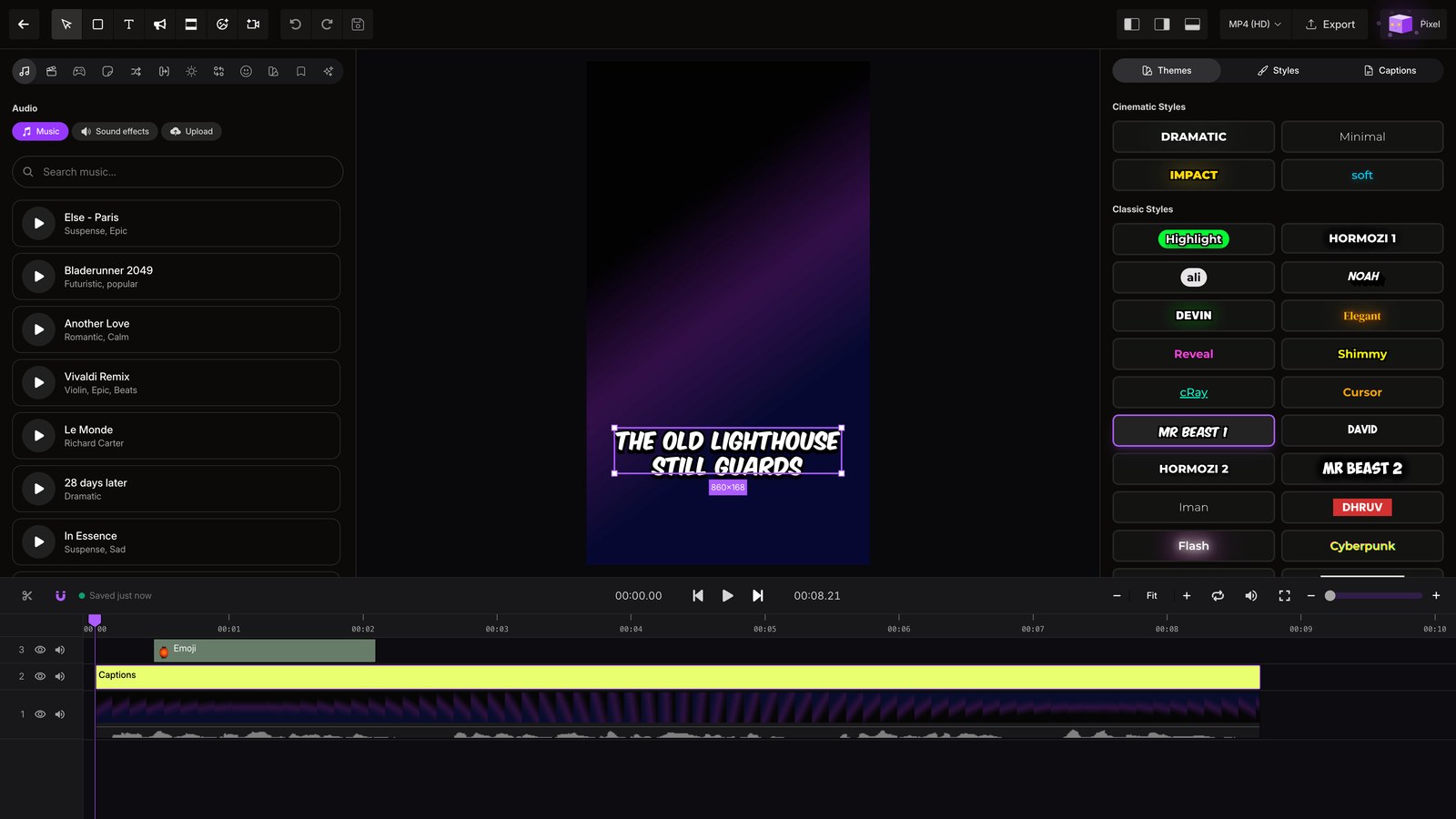
Style captions
Select the captions track, open Themes, and choose Mr Beast 1. The new caption style appears right away.
06
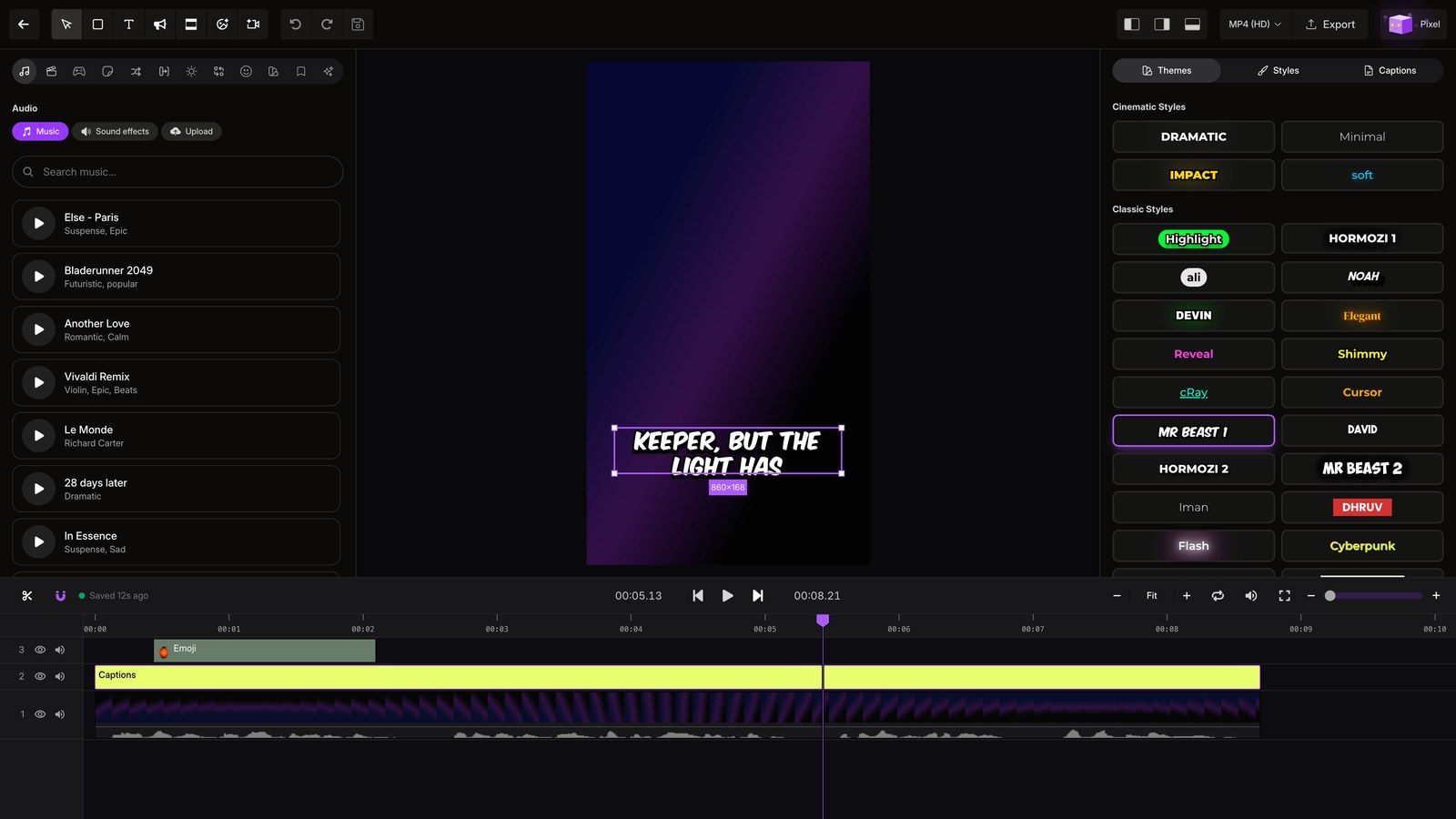
Play styled
Hit Play to check each caption against the words spoken in your footage.
07
Another look
Choose Highlight, then play the video again to see the same captions in a different style.