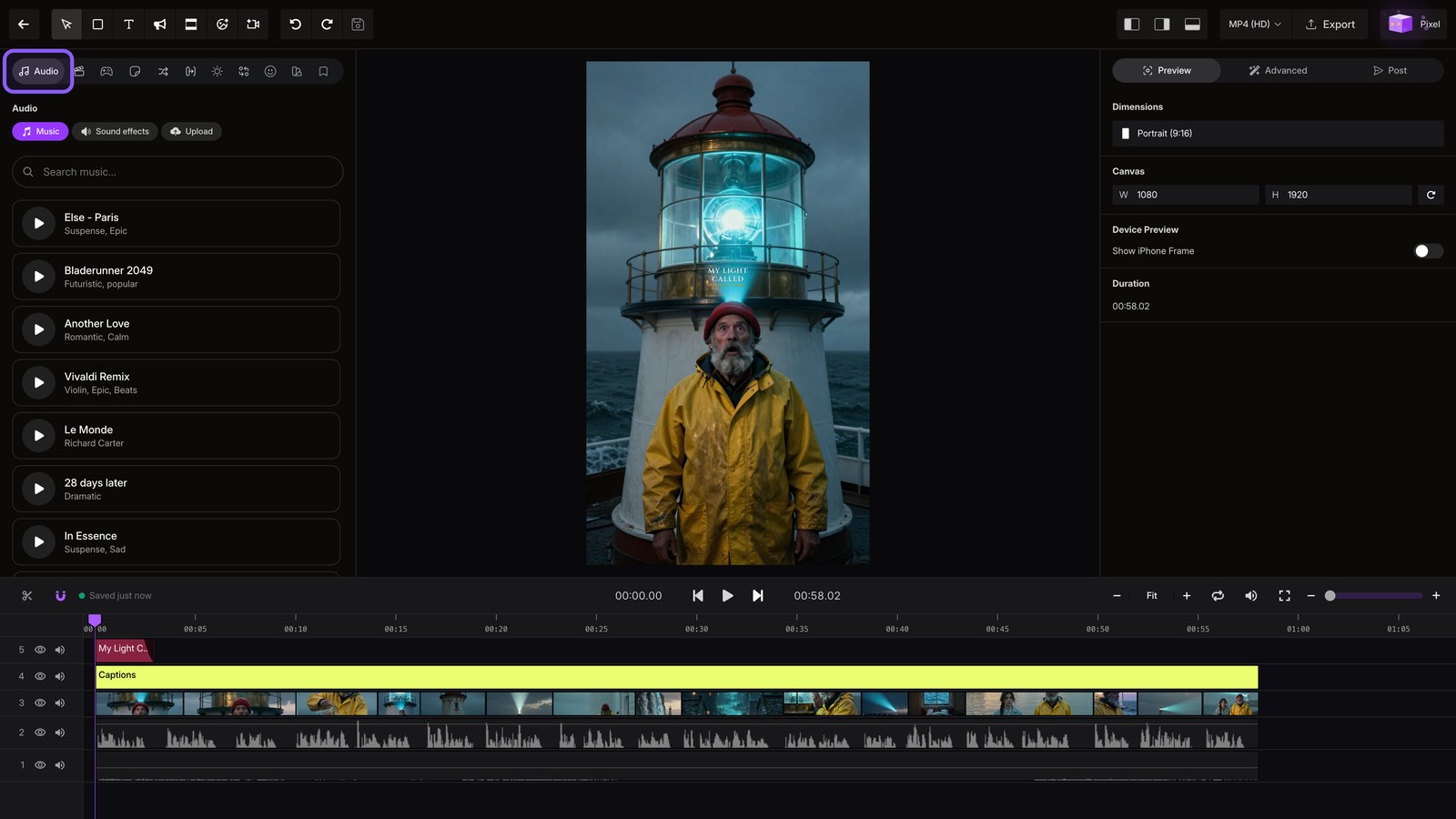
Edit Your Video
Open a finished video in the editor and explore captions, media, effects, and audio.
Open projects
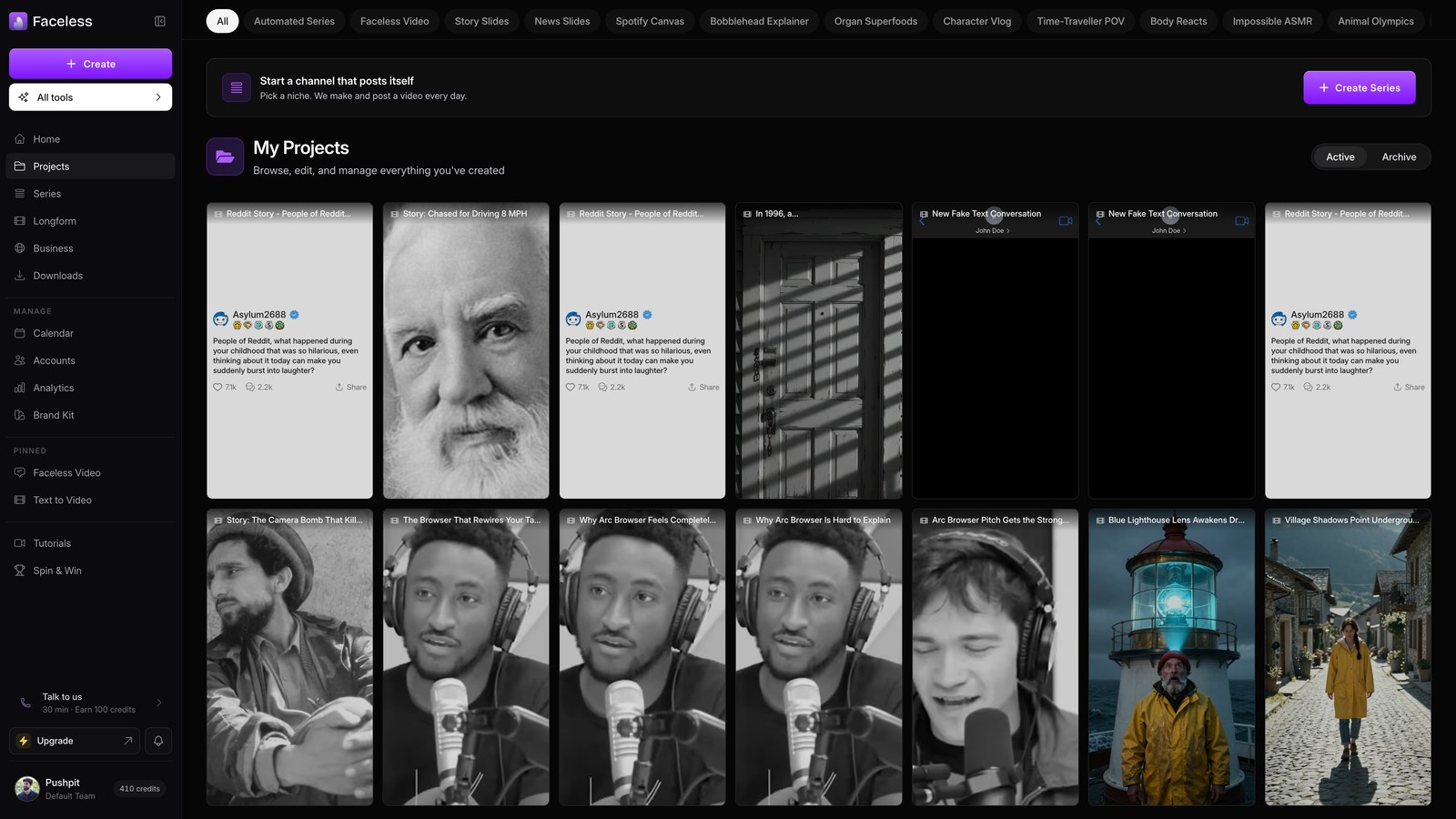
Open Projects to find every video you create.
Open project
Pick any finished video, then wait as it opens in the editor.
Caption themes
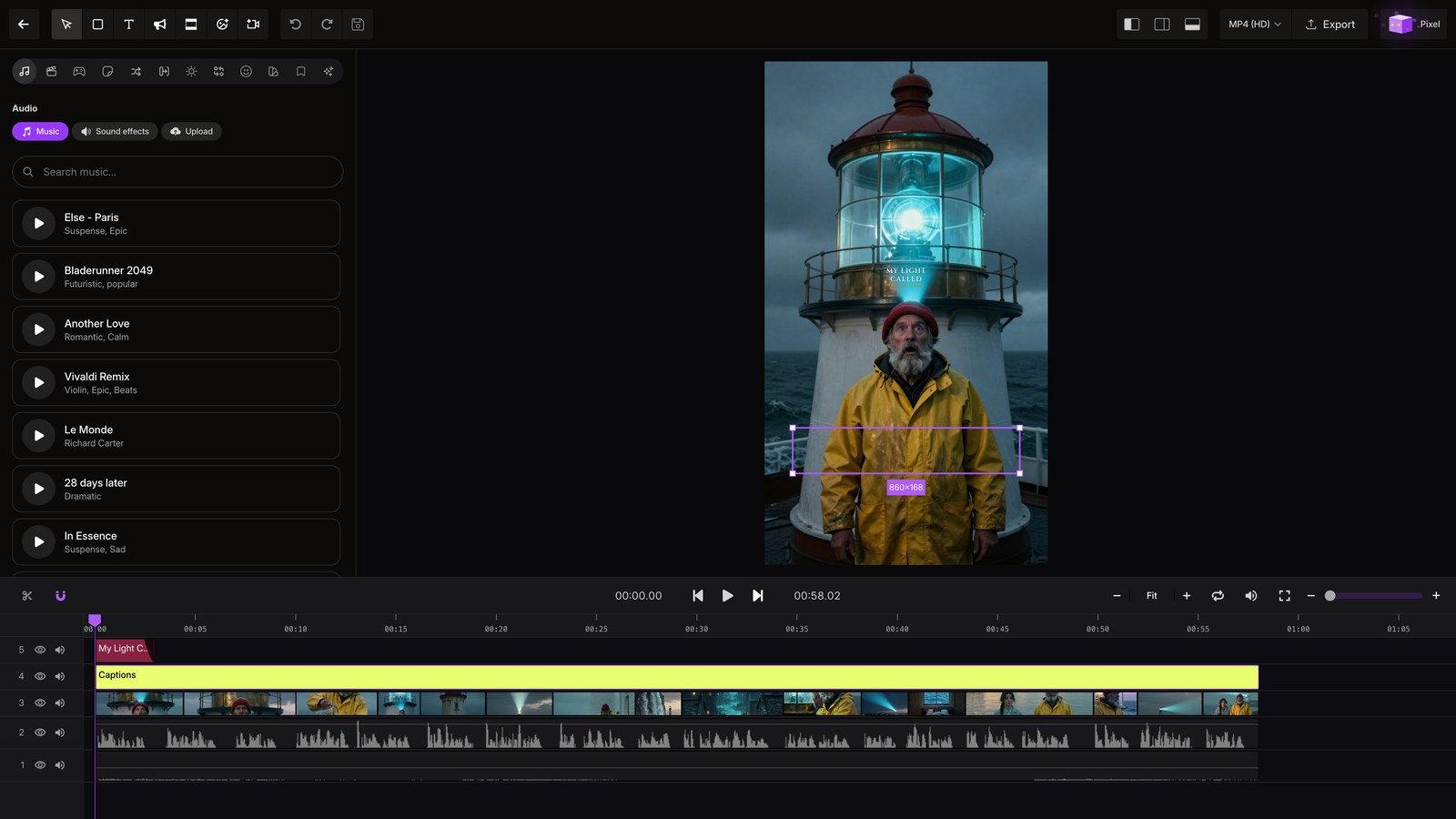
Select the captions track, then open Themes to restyle every caption across your video at once.
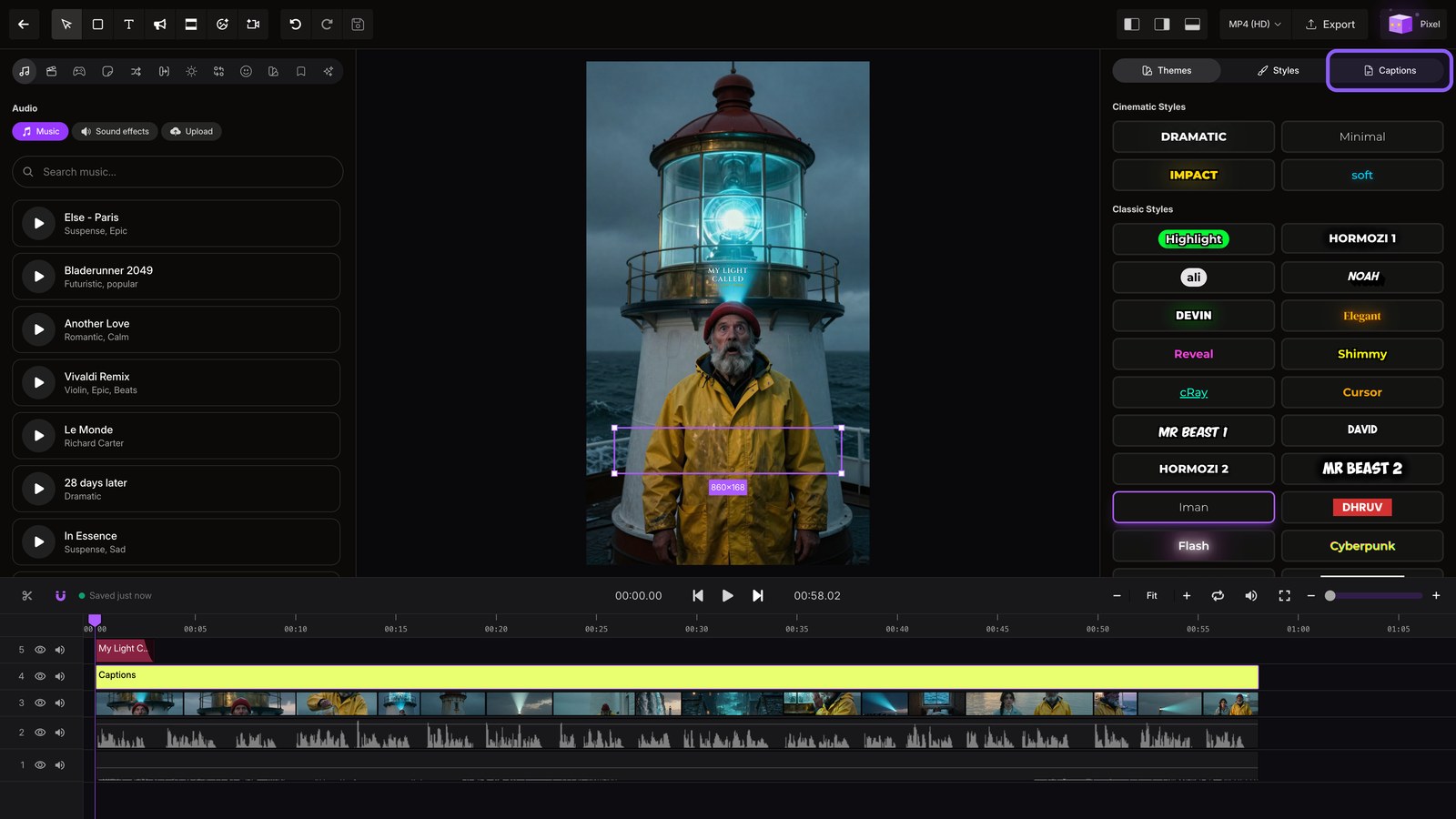
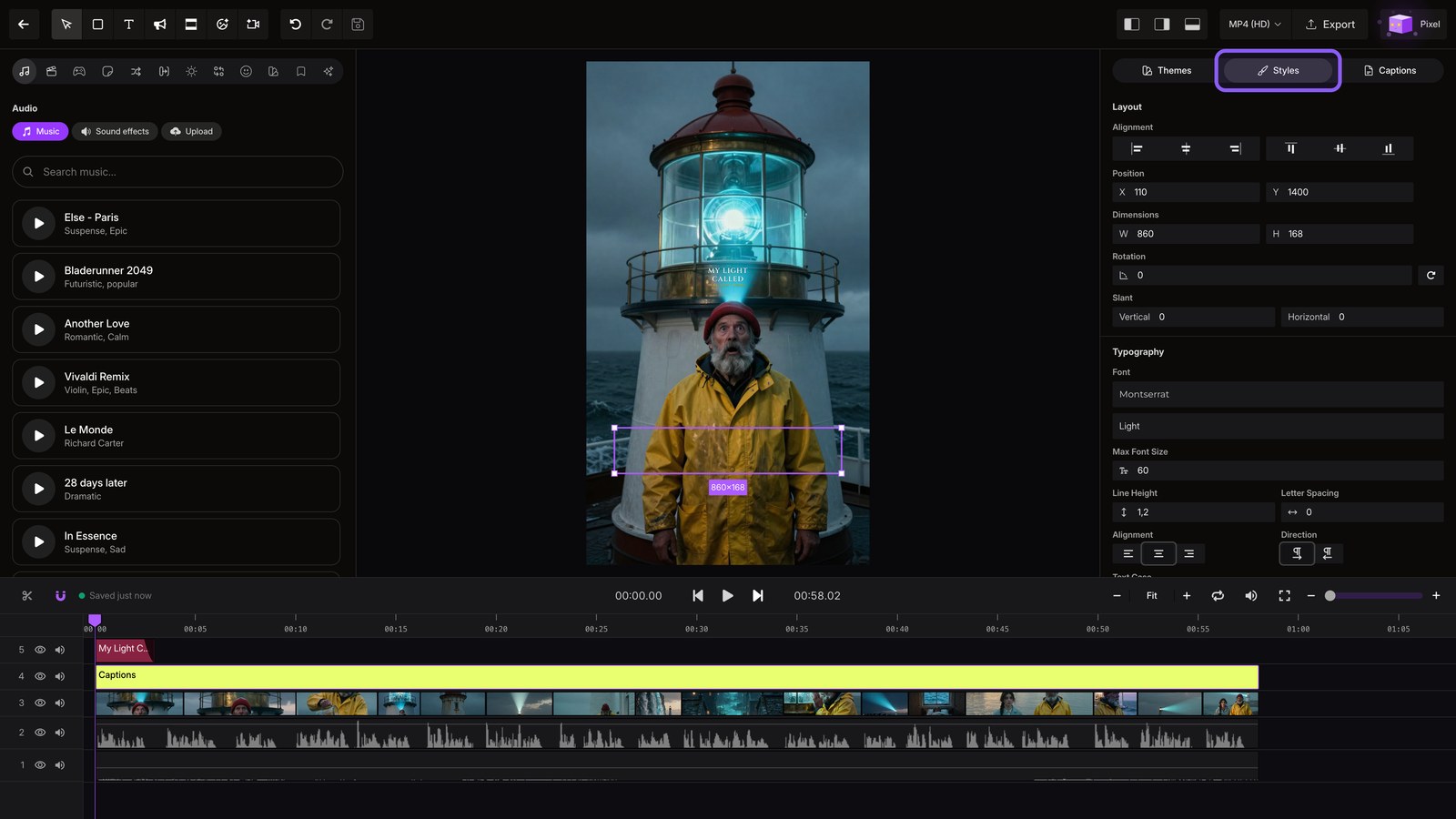
Caption styles
Open Styles to adjust your caption font, size, color, and animation.
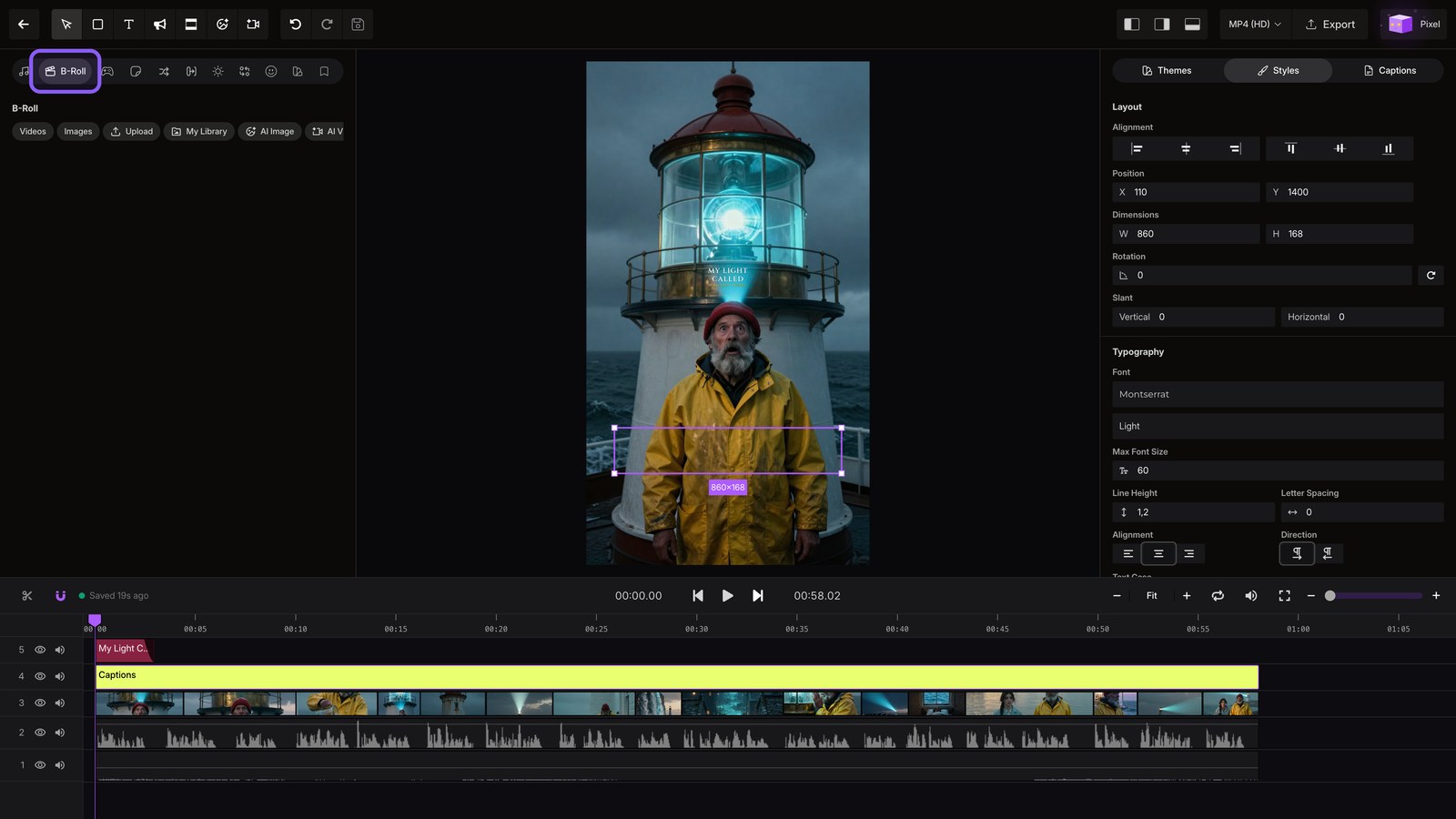
Broll
Open B Roll to place generated clips over scenes that need more movement.
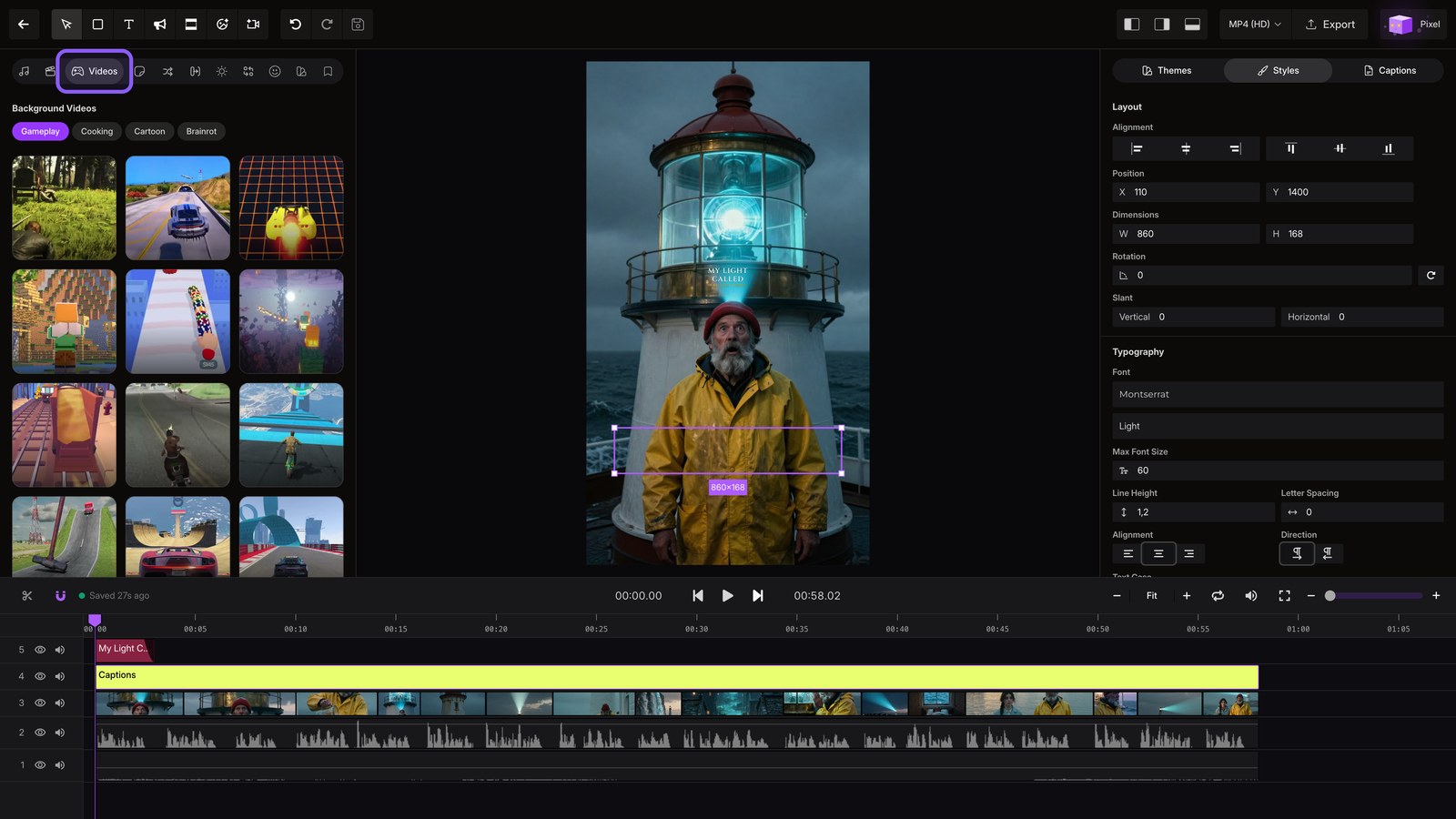
Background videos
Open Videos, then choose background or gameplay footage to use as your backdrop.
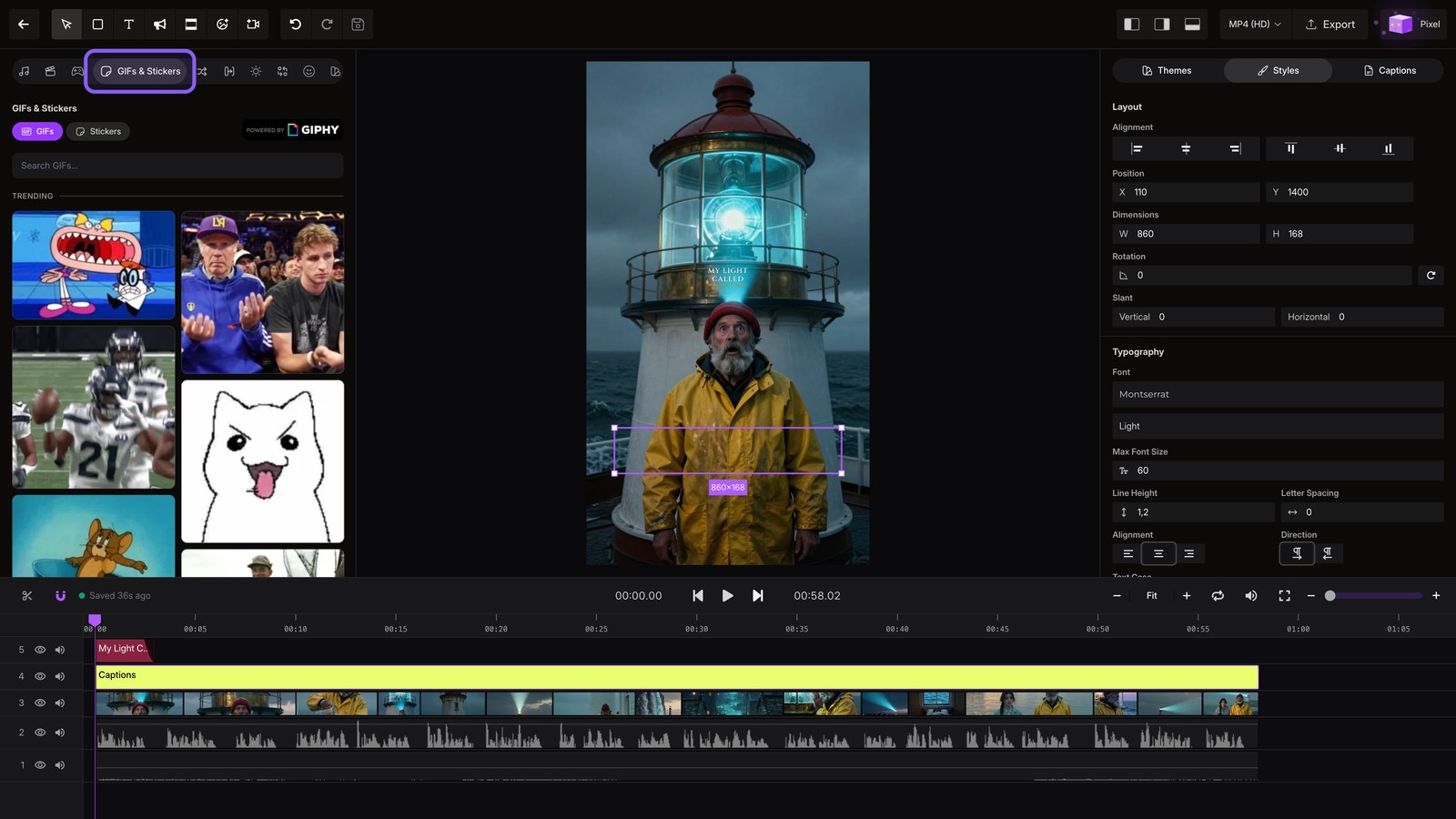
Gifs stickers
Open GIFs and Stickers to layer quick reactions over your video.
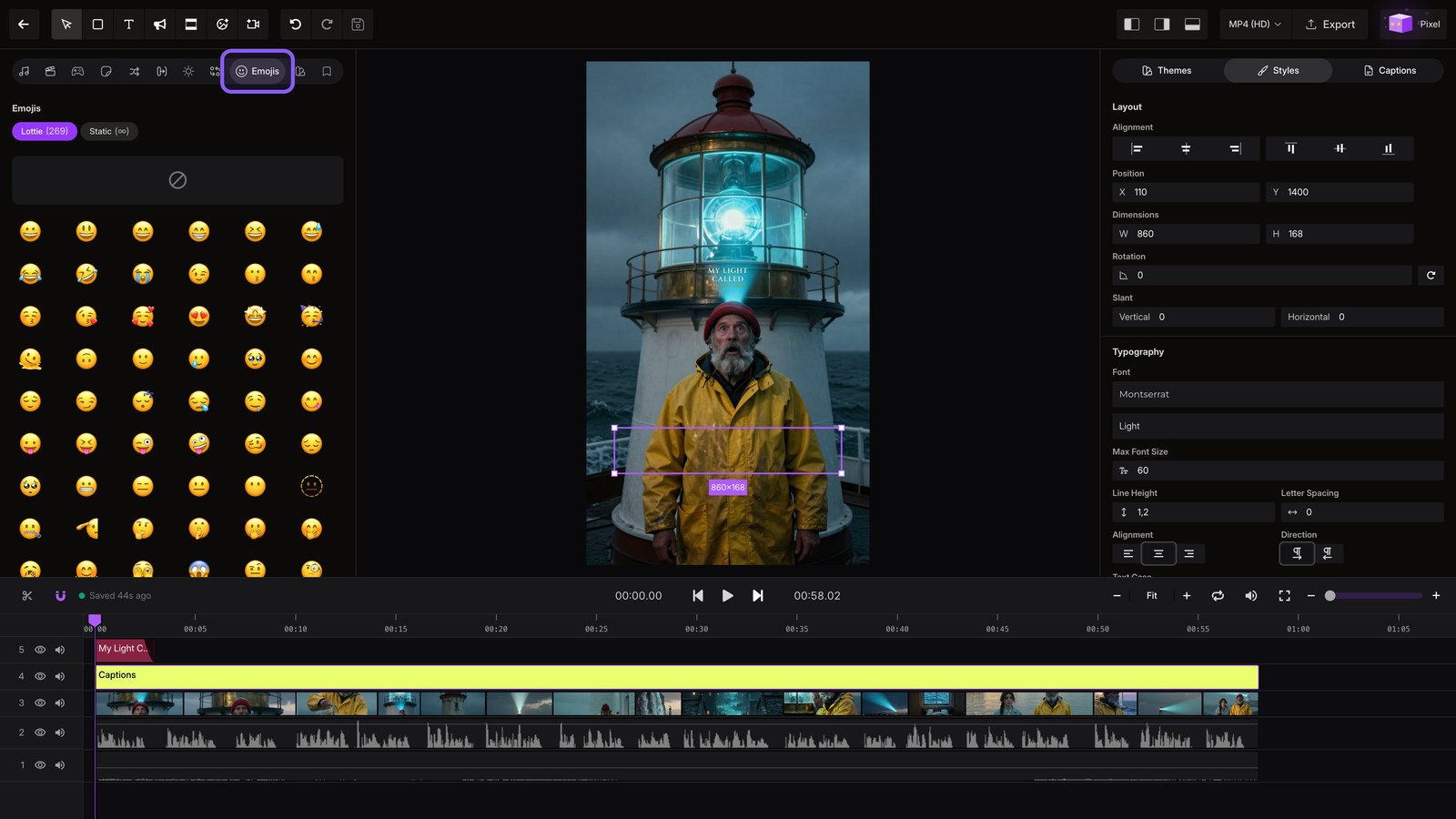
Emojis
Open Emojis to place a reaction on any timed word in your script.
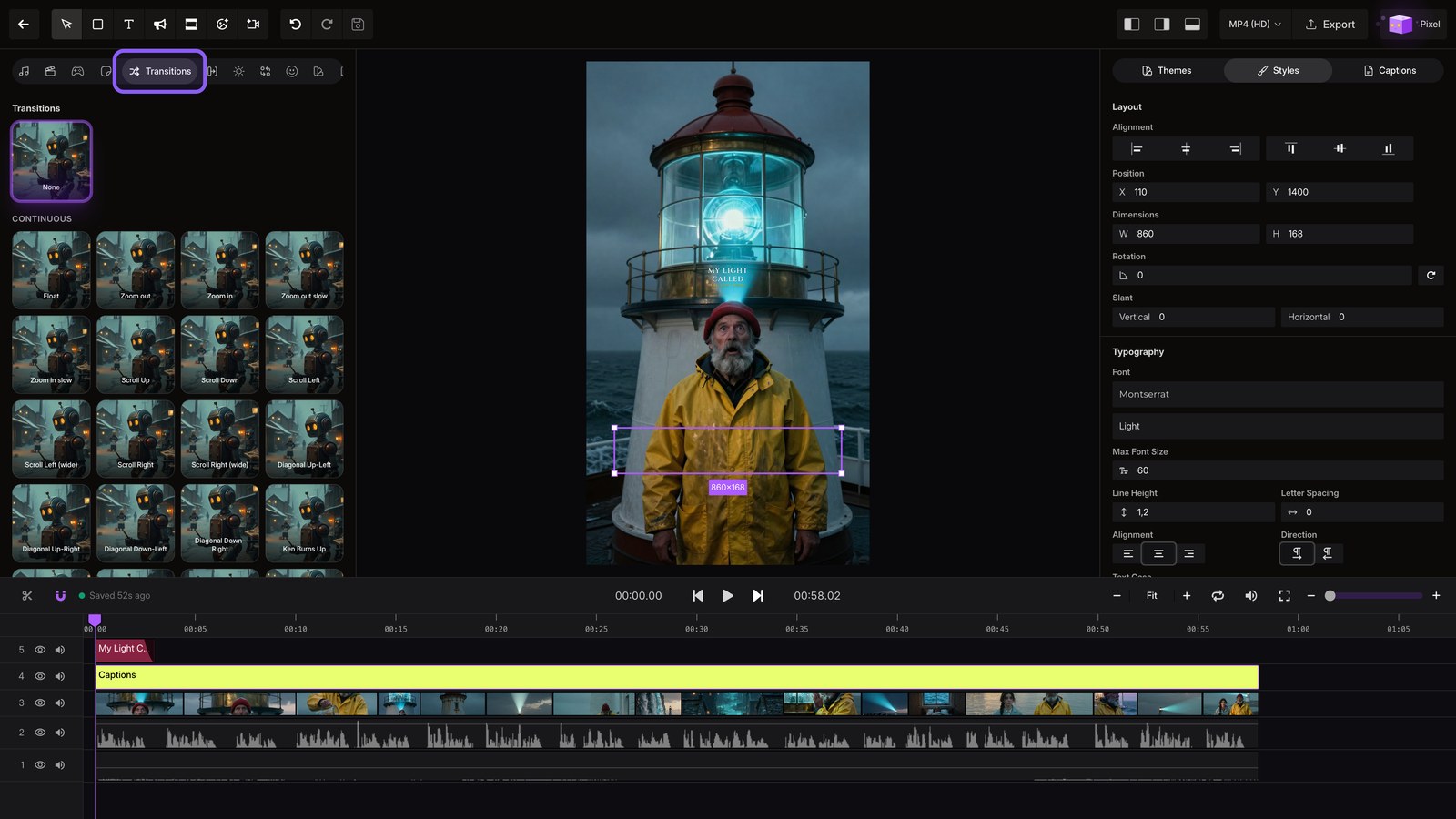
Transitions
Open Transitions to smooth the cuts between your scenes.
Effects
Open Effects to layer motion or color treatments over any clip.
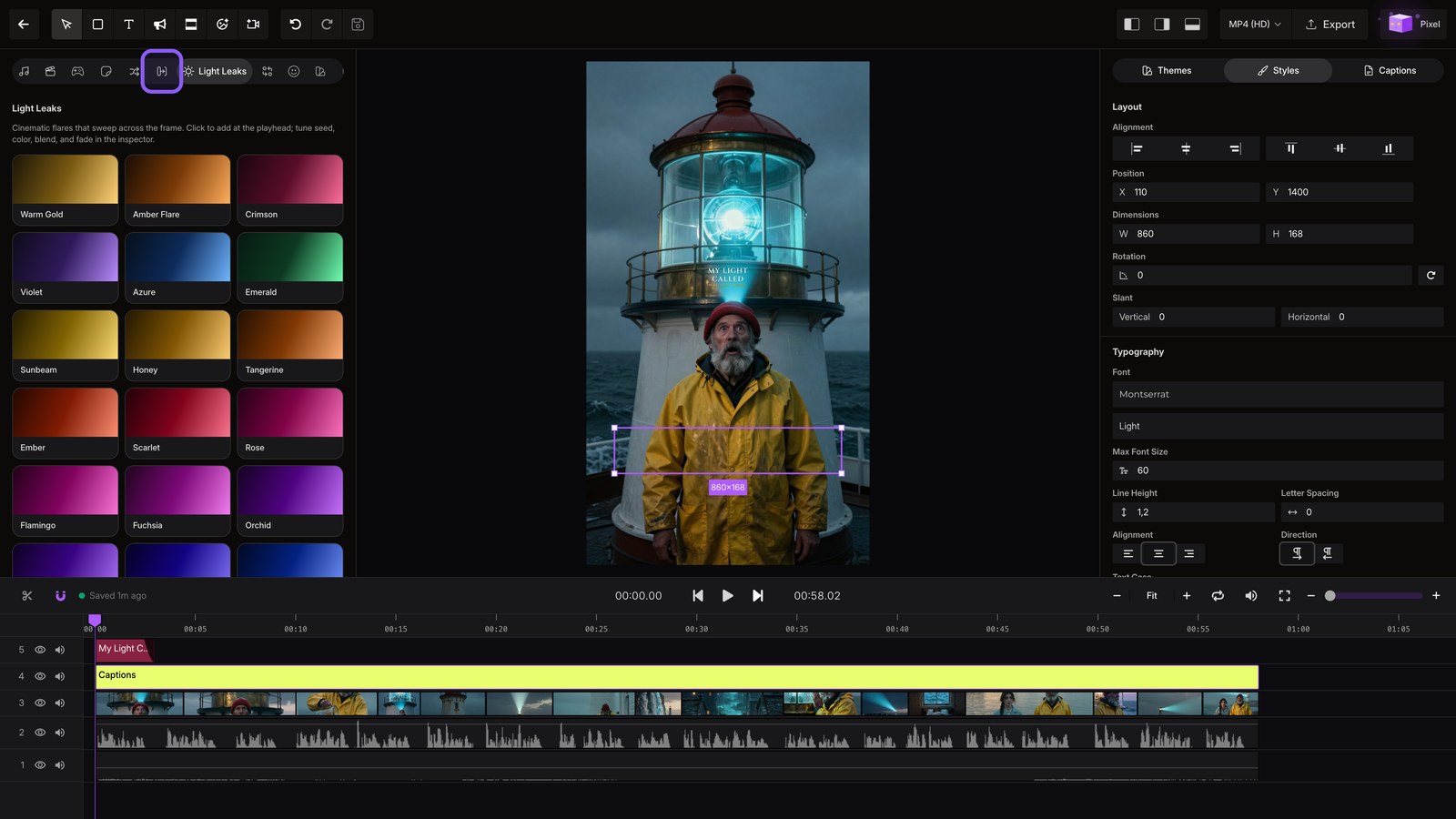
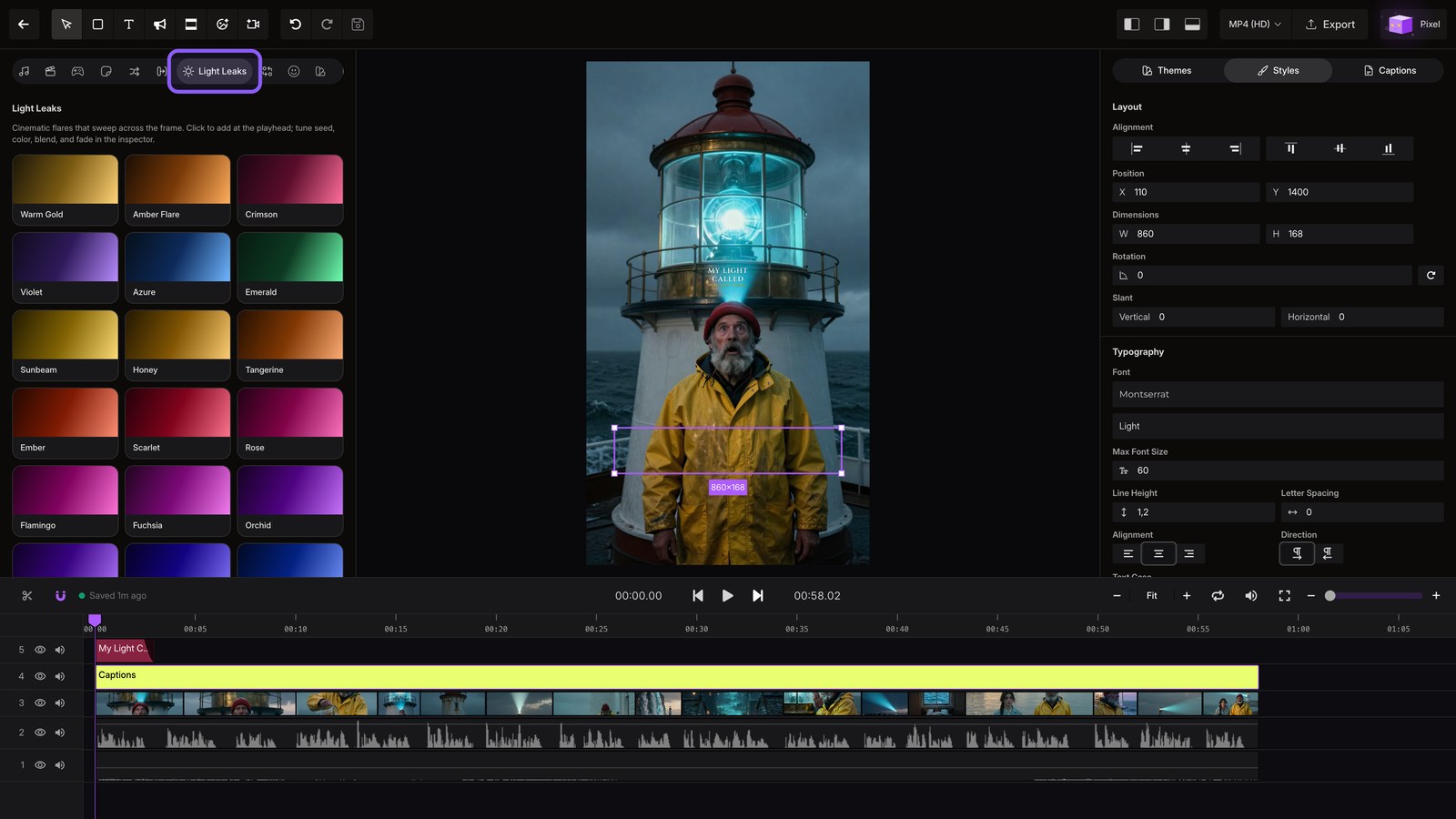
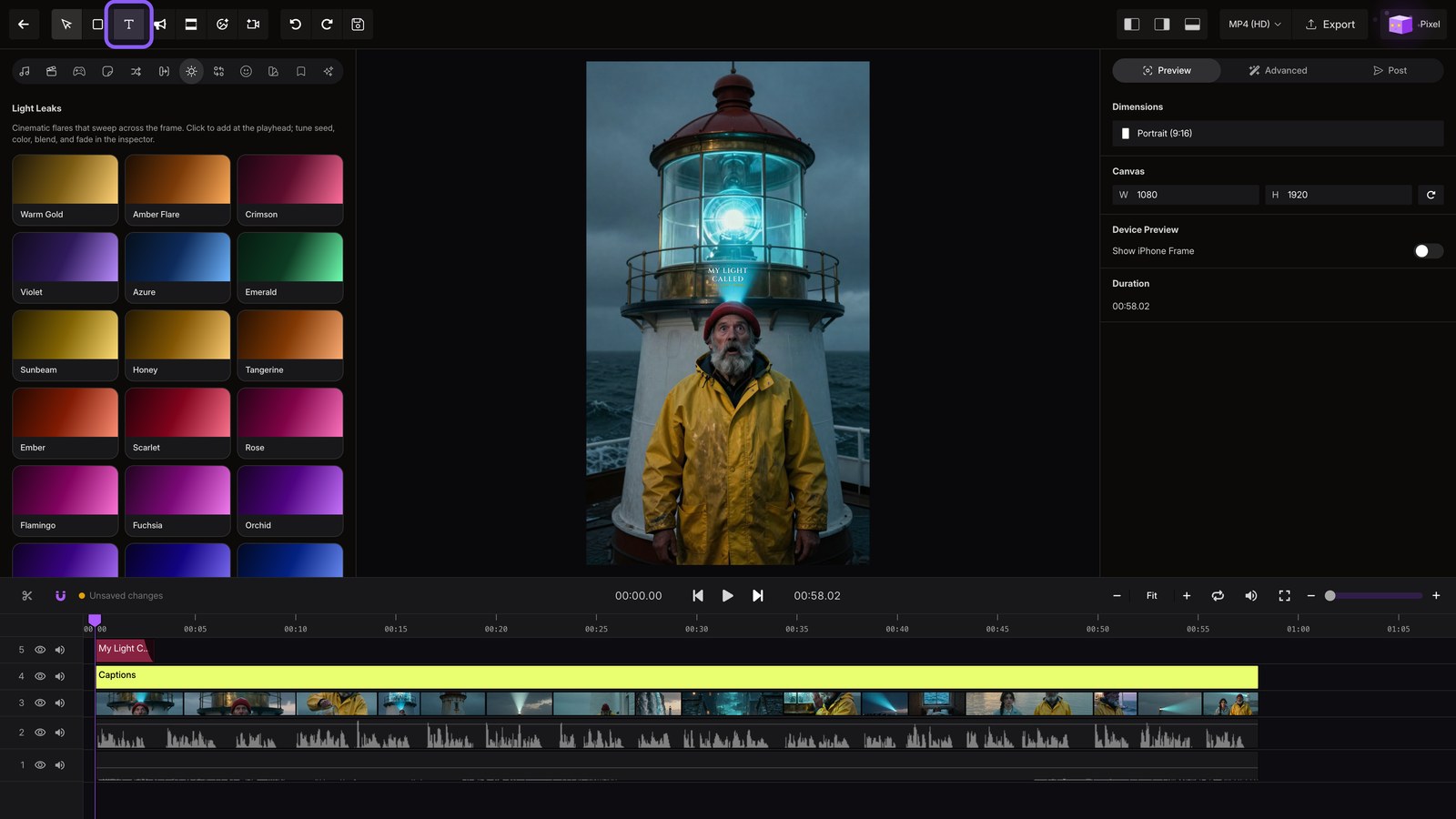
Light leaks
Open Light Leaks to add a flare between moments.
Text and hooks
Add Text to place a hook or callout, then undo the change.
Music
Open Audio to swap the soundtrack or add sound effects.